Find help with creating, scheduling and managing content in DigLab Social. Choose a topic from the menu or search the articles by title, feature or question.
Start using Social
Before you beginCheck your workspace, connected accounts and publishing access.
Features depend on your plan, role, connected channel, permissions and available credits. Menu names and options may differ between workspaces.
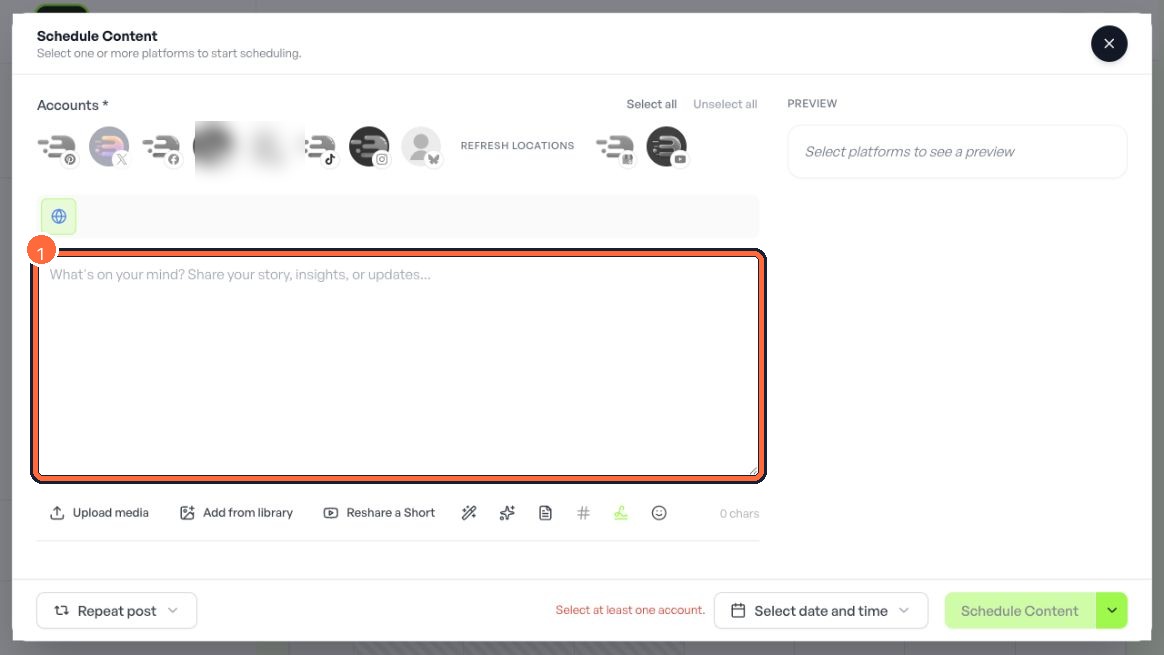
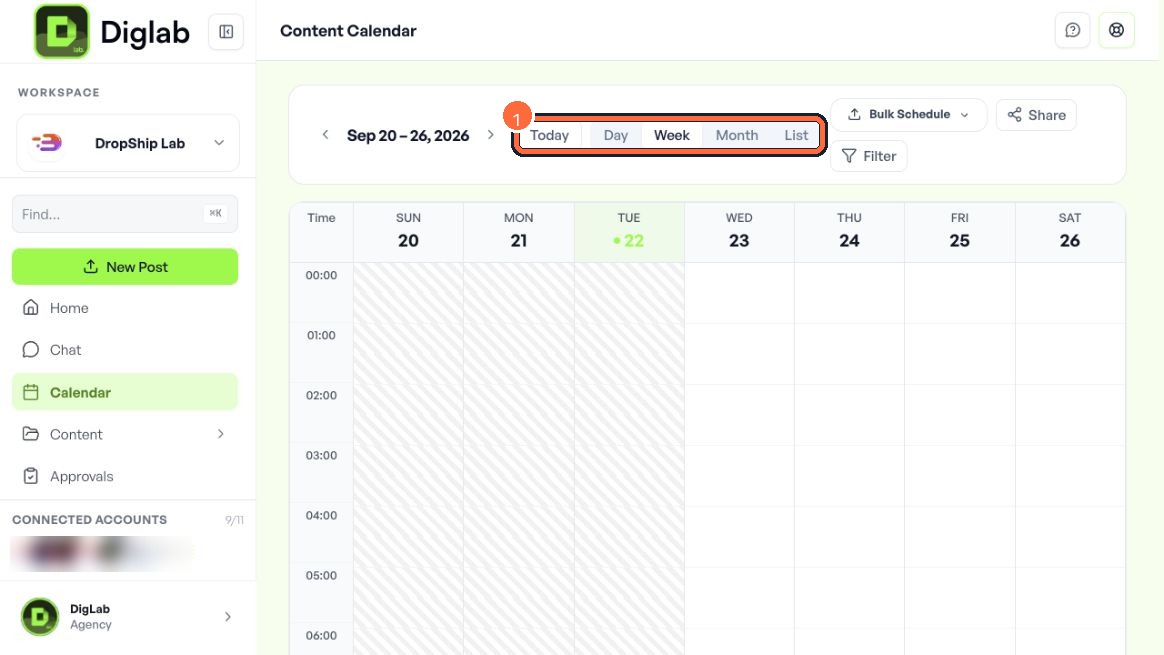
The screenshots show the complete interface checked on 22 September 2026, including navigation and surrounding page context. Highlighted controls show where to work, and selected account imagery is blurred for privacy.
Complete Image Studio view with its navigation, prompt, settings and credit control visible. The prompt field is highlighted; account imagery is blurred. Credit costs and settings can change.
Organise ideas and drafts
Find it in: Content / planning
How it works
Use the content library to find drafts, scheduled posts, published content and failures. Where available, capture early ideas on the idea board and turn them into drafts.
Things to check
Good habit: check the status before editing or scheduling the same content again.
Write and repurpose content
Find it in: Create / writing
How it works
Use caption assistance, prompt templates and repurposing tools to create a starting point from approved source material. Tailor the message to each destination.
Things to check
Good habit: verify facts, links and calls to action. AI suggestions still need your review.
Set your brand context
Find it in: Workspace / brand settings
How it works
Maintain your brand profile, voice, audience, guidelines and approved reference documents where these settings are available. Brand memory helps keep future drafts consistent.
Things to check
Good habit: keep sensitive customer records and credentials out of marketing prompts and documents.
Use the media library
Find it in: Create / media
How it works
Attach images and videos from the media library. Use available image editing, resizing, carousel or video tools to prepare the format your channel needs.
Things to check
Good habit: preview the final crop and confirm you have permission to use every asset.
Review and approve content
Find it in: Approvals / collaboration
How it works
Use your team’s approval process to assign a reviewer, collect feedback and reach an explicit decision before content goes live.
Things to check
Good habit: confirm the latest version is approved, especially after changes to an offer, claim or date.
Understand your analytics
Find it in: Analytics / performance
How it works
Select the account and reporting period, then compare the metrics your channel provides. Review individual posts to understand which topics and formats help.
Things to check
Good habit: give new data time to arrive. Missing metrics are not necessarily zero, and engagement alone does not prove sales.
Use automation and bulk tools
Find it in: Automation / repeatable work
How it works
Where enabled, use approved source feeds, queues, recurring content or bulk tools to reduce repetitive work. Review destinations, timing, repetition and approval rules.
Things to check
Good habit: test with a small, reviewed batch and check its outcome before increasing volume.
Use Social’s Inbox
Find it in: Inbox / conversations
How it works
Social’s Inbox brings supported comments, mentions or messages into the workspace. Coverage depends on the network and its connection permissions; publishing support does not guarantee messaging support.
Use the available integration and connection settings to check account access. Reconnect through the official sign-in flow when prompted, using the correct account owner.
Things to check
Good habit: after reconnecting, review affected posts before retrying so you do not publish duplicates.
Supported publishing channels
Find it in: Channels / availability
How it works
Documented publishing destinations include Facebook, Instagram, YouTube, X, LinkedIn, TikTok, Bluesky, Threads, Pinterest, Google Business and Mastodon.
Things to check
Good habit: confirm your account type, format and current connection support. WhatsApp is not a Social publishing destination.
Watch the workflow overview
Existing DigLab fair film · 60 seconds · silent · English and Chinese on-screen text.
Direction. Plan. Learn.
A conceptual overview of the content workflow, illustrated through the Drop Ship Lab business. This is not a click-by-click Social product tutorial.
Set the direction: agree on the objective, brand boundaries and approval path.
Build the plan: connect ideas, production and review.
Learn from the cycle: reuse verified work, evaluate results and refine the next plan.
The written steps and screen tours above explain the current Social controls.
Cannot select an account or schedule
I cannot select an account or schedule a post.
What to check
Confirm the workspace, account connection and your publishing role. Select at least one account and complete the required caption or media. Check for channel validation messages and any approval requirement. If access is missing, contact your workspace administrator.
Read the failure message first. Check the connection, account permissions, media format and network limits. Open the destination account to confirm the post was not already published. Correct the cause, then retry only the affected item. Repeating the submission without checking can create duplicates.
Check the selected date range and calendar filters, then inspect the post’s date, time zone and destinations. Compare these with your workspace and account settings. Confirm the corrected scheduled time before leaving the post.
Availability varies by plan, role, channel and connection. Some networks expose fewer metrics or conversation types, and new data may take time to sync. Confirm the account and date range. Ask your workspace administrator about enabled features before assuming an option is broken.
Check the destination’s supported file type, size, aspect ratio and duration. Re-export an appropriate version, attach it again and inspect the preview. A file that works on one channel may need a different version for another.
Review the workspace’s brand context and give the prompt a specific audience, goal, tone and example. Replace unsupported claims and check exact text in images. Keep the final decision with a human reviewer.